
Fix: Web Vault link opens the Keeper app instead of your browser
If tapping a Keeper Web Vault link on your phone or tablet opens the Keeper app instead of your browser, this article walks you through how to get to the Web Vault directly, without uninstalling anything.
Symptoms
- You tap a Web Vault link (from an email, text, or shared page) on a mobile device that has the Keeper app installed.
- Instead of loading in Safari/Chrome, the Keeper app opens.
- You need the Web Vault specifically, for example, printing/export not available in the mobile app.
Cause
This isn't a bug, it's standard mobile OS behavior called Universal Links (iOS) or App Links (Android). When an app is installed and registered for a domain, the operating system automatically hands off any tap on a matching link to that app instead of the browser. It's meant to be a convenience, but it gets in the way when you specifically want the web version.
Solution
Option 1 (fastest, works on both platforms): Copy the link and paste it into your browser
Pasting a URL directly into the address bar doesn't trigger the app handoff, only a direct tap does.
- Touch and hold the link.
- Choose Copy Link (iOS) or Copy link address (Android).
- Open Safari or Chrome.
-
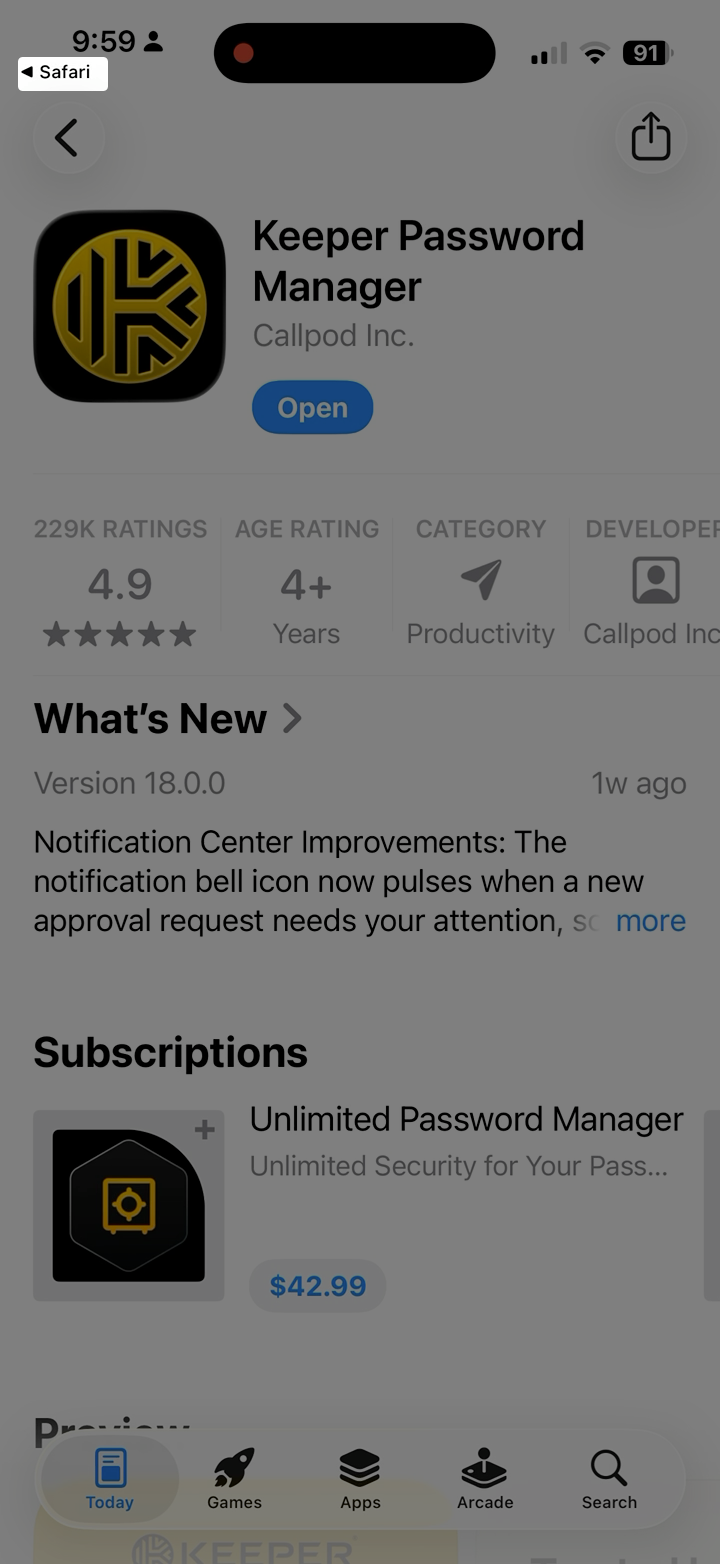
Tap the address bar, paste, and go. Note: pasting the link and going can still trigger the app handoff, since the OS checks the URL itself, not how it was entered. If this happens, look for the small Safari banner or icon in the corner of your screen (usually top-left) and tap it to jump back to your browser.
Option 2: Open the link in a new tab instead of tapping it directly
iOS (Safari):
- Touch and hold the link.
- Choose Copy Link.
-
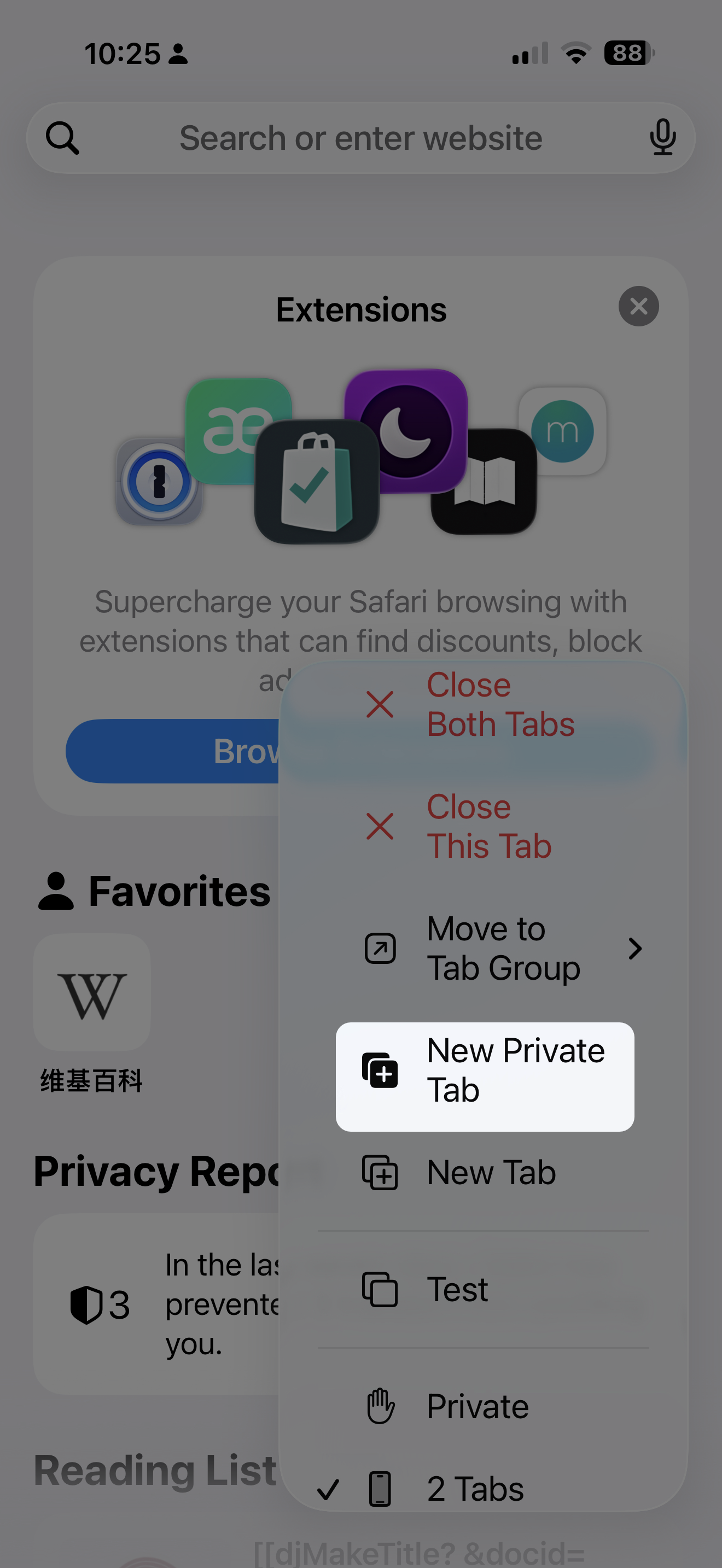
Open a new Private Tab: tap the tabs icon, then long-press it (or tap Private, then +) and choose New Private Tab.
-
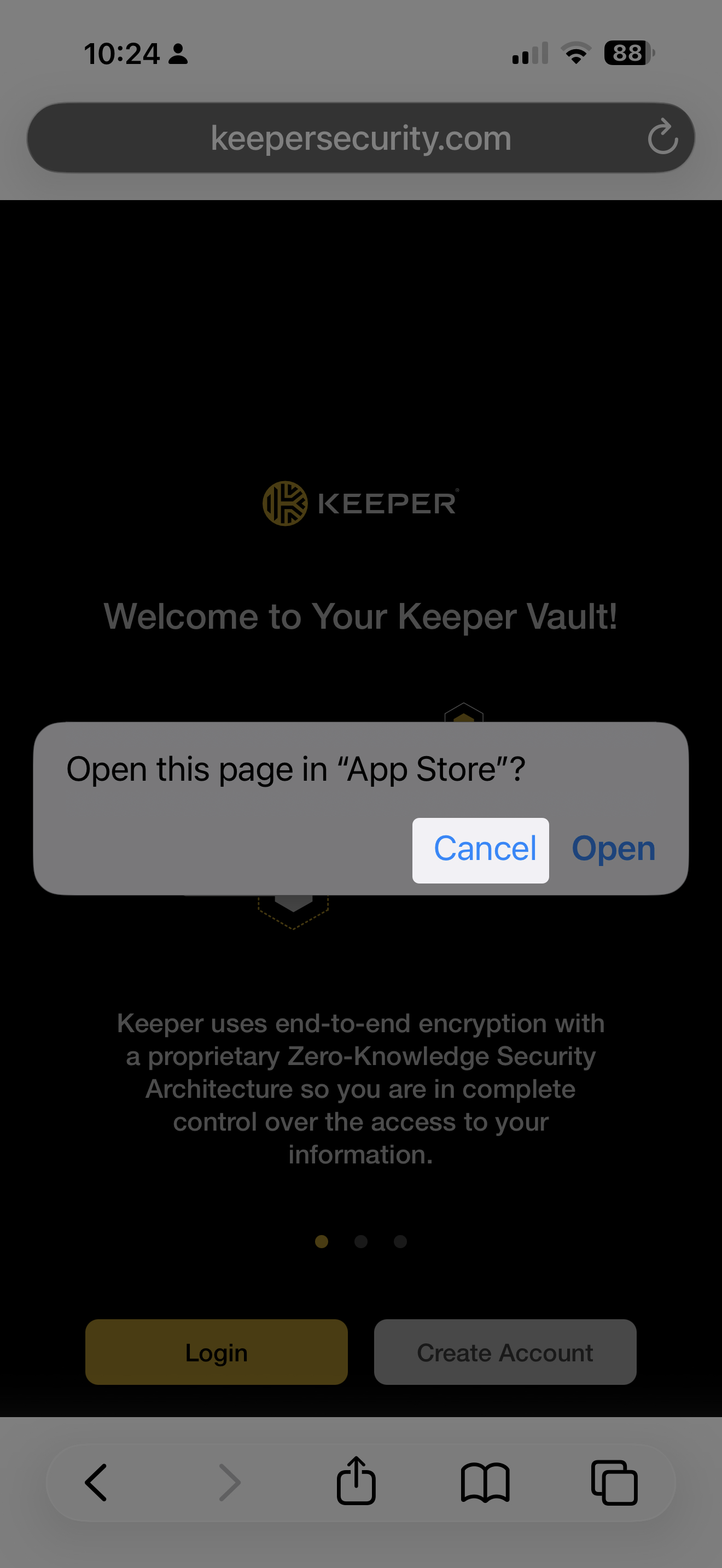
Tap the address bar, paste the link, and go. When you get prompted, choose Cancel so you can stay in the browser to access the Web Vault.
Option 3 (Android only, permanent fix): Turn off Keeper's default link handling
This is a one-time setting, not an uninstall, and it keeps the app installed for everything else.
- Go to Settings > Apps > Keeper Password Manager.
-
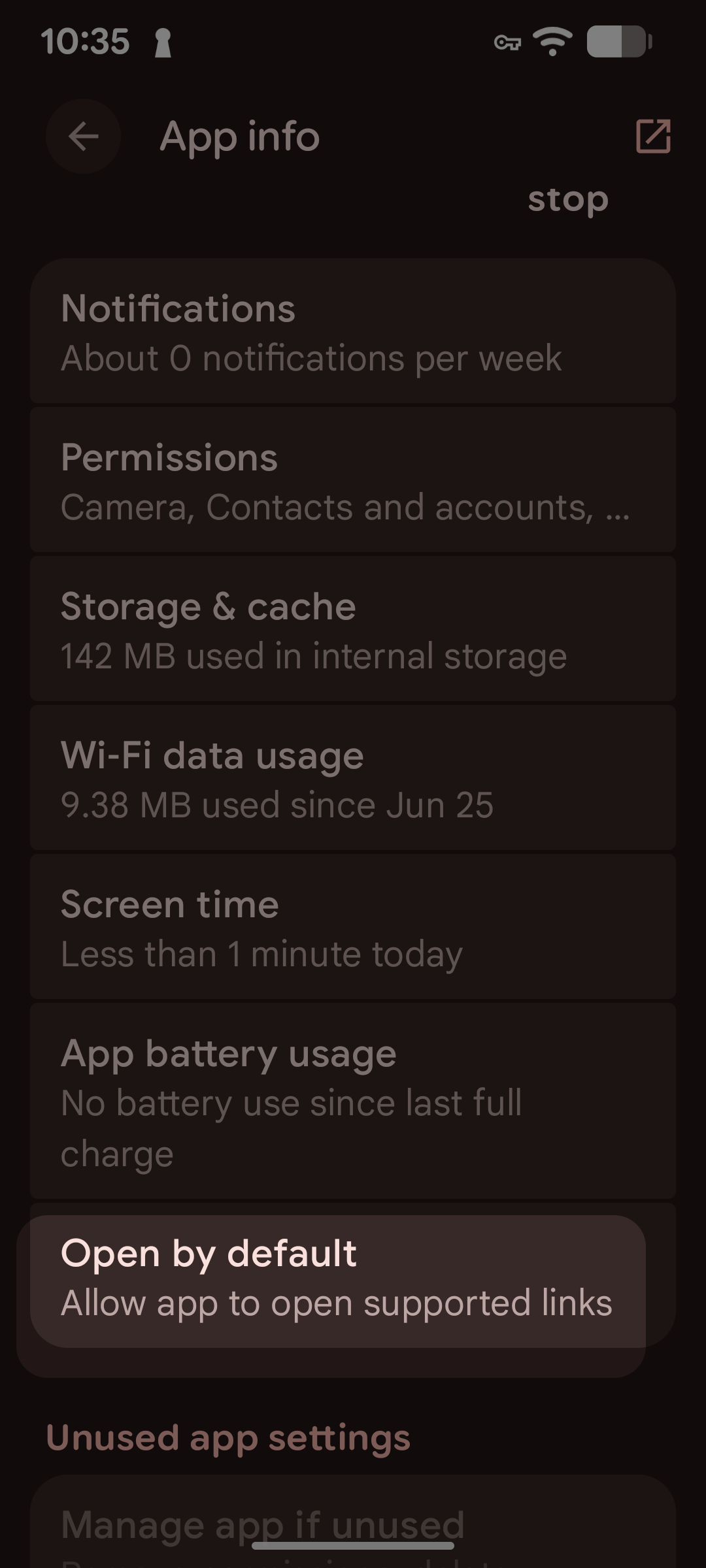
Tap Open by default (sometimes labeled Set as default).
-
Turn off Open supported links, or remove the Web Vault domain from the link list.
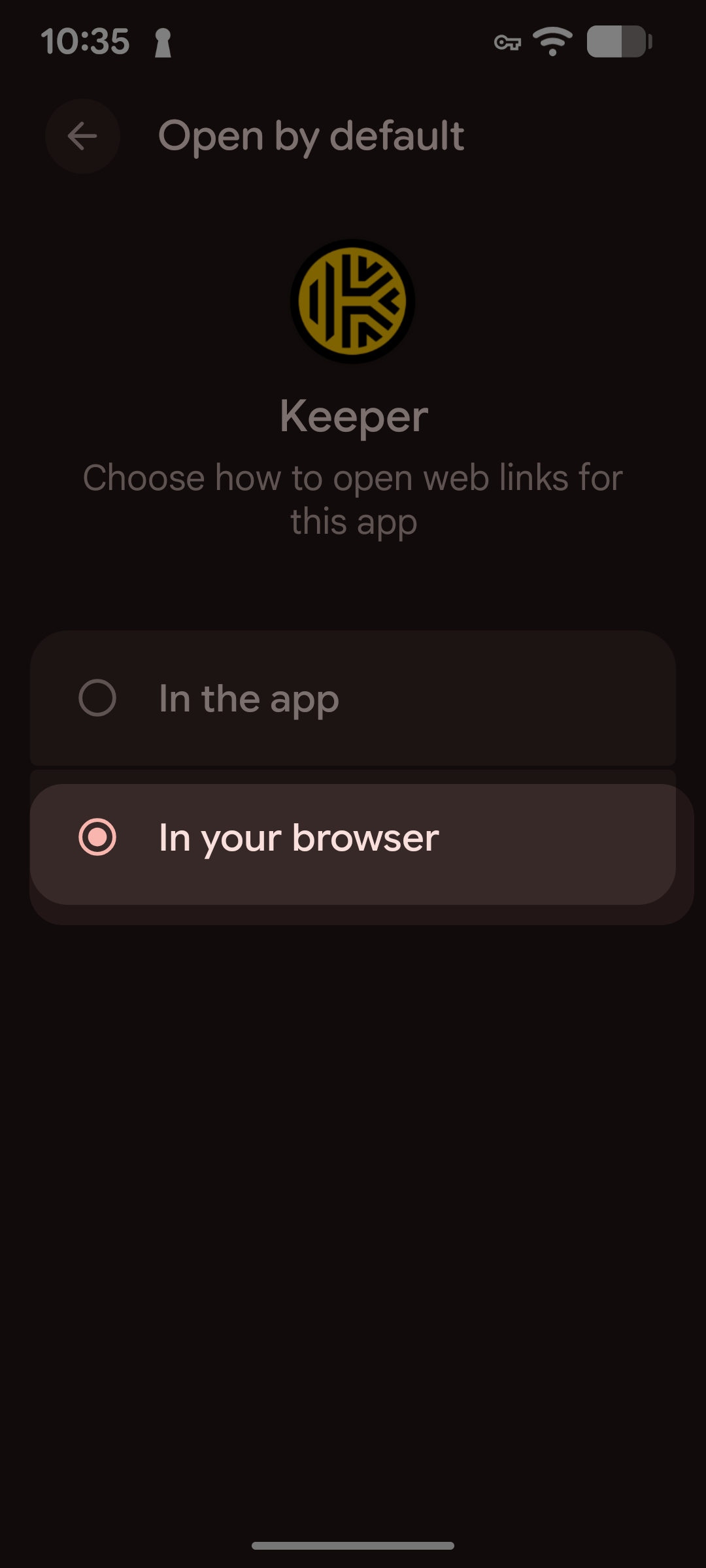
Links will now open in your browser by default going forward.
Option 4 (last resort)
If none of the above work, opening the link on a device without the Keeper app installed (or a desktop browser) will always load the Web Vault directly. Uninstalling the app is not necessary and isn't recommended, it's disruptive and can be avoided with the options above.
Prevention
This will keep happening for any Keeper Web Vault link as long as the app is installed, it's how the OS is designed to work. Option 3 (Android) is the only permanent, set-it-and-forget-it fix; on iOS, Option 1 or 2 is the reliable long-term habit.
Still Having Issues?
If you've tried the steps above and still can't reach the Web Vault, contact Keeper Support with your device type (iOS/Android) and OS version.